 Winners - Best Business Broadband Provider & People's Choice - Broadband 2025
Moving to Hyperfibre? What You Need to Upgrade at Home
So, you’ve decided to upgrade your home internet to Hyperfibre? Great! With speeds of up to 2000Mbps or 4000Mbps, depending on your plan, you’ll soon have a lot more internet capacity available at home.
But there’s one important thing to know: upgrading your broadband connection doesn’t automatically mean the rest of your home setup can keep up.
Your router, Wi-Fi equipment, Ethernet cables and even your devices can all affect the speeds you experience. Some equipment that worked perfectly well with standard fibre might become a bottleneck on Hyperfibre.
The good news? You probably won’t need to replace everything. A few checks before your connection goes live can help you get the most out of your upgrade.
What equipment do you need for Hyperfibre?
To prepare your home for Hyperfibre in New Zealand, you’ll need a compatible fibre box (ONT) and a router capable of handling multi-gigabit speeds. You may also need to update your Wi-Fi equipment, Ethernet cables, network switches or computer adapters. Older devices will generally still work, but their hardware may limit the speeds they can achieve.
What equipment might you need to upgrade for Hyperfibre?
Before you start replacing anything, here’s a quick overview of what to check.
| Equipment | Upgrade needed? | What to look for |
|---|---|---|
| Fibre box (ONT) | Sometimes | Hyperfibre-compatible model |
| Router | Often | Multi-gigabit WAN and LAN ports |
| Wi-Fi equipment | Possibly | Modern Wi-Fi standard and good coverage |
| Ethernet cables | Sometimes | Cabling suitable for multi-gigabit speeds |
| Network switches | If you use them | 2.5Gbps or faster ports where needed |
| Computers and laptops | Optional | Multi-gigabit network adapters |
| Phones, TVs and gaming consoles | Usually not | Existing devices can still connect |
The main thing to remember is that your internet connection is only one part of your home network.
For example, if you’ve upgraded to Hyperfibre 2000 but your router only has a 1Gbps WAN port, that router could limit how much of the connection you can use.
That doesn’t mean every device needs to run at 2000Mbps or 4000Mbps. Hyperfibre can also provide more bandwidth for multiple devices to use at the same time.
Here’s what to check before making the switch.
1. Check whether your fibre box (ONT) needs replacing
Your Optical Network Terminal (ONT) is the small box installed inside your home where your fibre connection comes in.
If you’ve already got fibre broadband, you’ll have one of these installed. However, not every ONT is capable of supporting Hyperfibre.
Depending on the equipment currently installed, your local fibre network provider may need to replace it with a Hyperfibre-compatible model. See below for an example for Chorus ONT example.
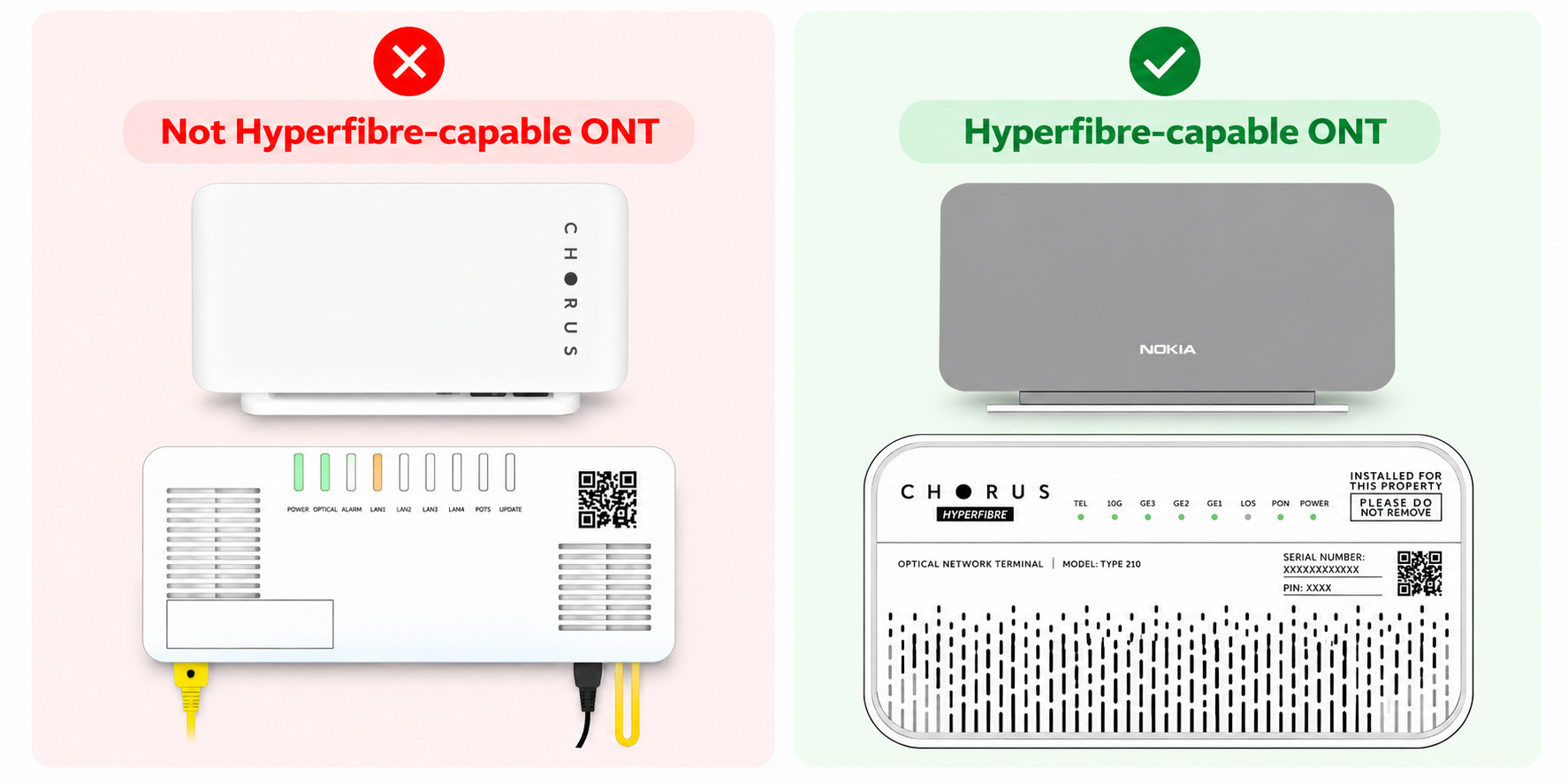
Details on Hyperfibre Tutahi First Fibre ONT’s can be found here and Hyperfibre Enable ONT’s can be found here.
What you need to do:
You don’t need to buy or replace your ONT yourself.
When you order Hyperfibre through Voyager, we can help confirm whether your existing ONT is compatible and whether a technician visit will be needed.
If an upgrade is required, it’s worth allowing extra time before your new connection goes live.
2. Make sure your router is Hyperfibre-compatible
Your router is one of the most important things to check before upgrading.
Many routers designed for standard fibre have Ethernet ports limited to 1Gbps (1000Mbps). While these are perfectly suitable for many existing fibre connections, they can restrict the speeds available on Hyperfibre.
For Voyager Hyperfibre, your router needs to support multi-gigabit connectivity.
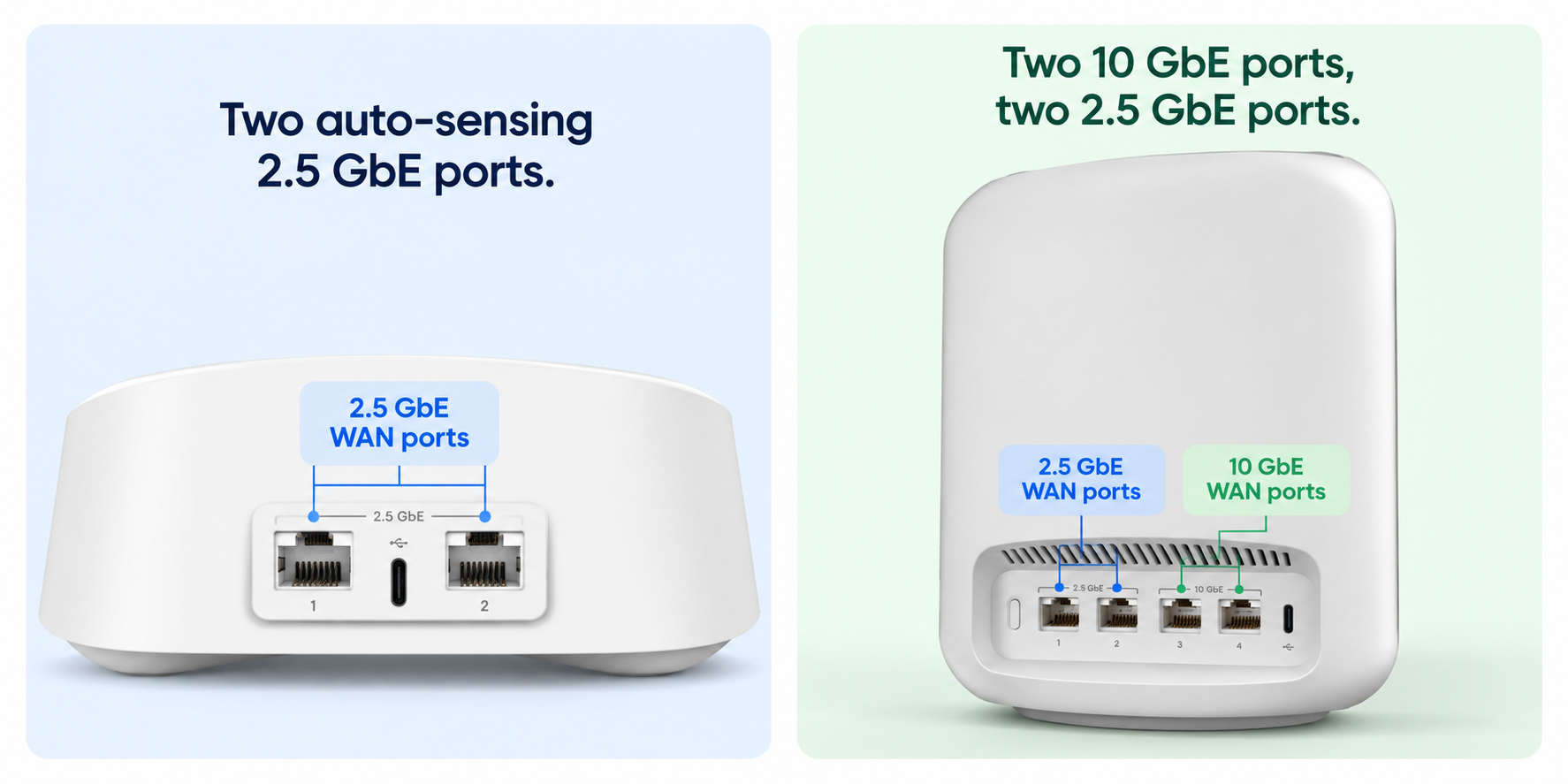
The WAN port is where the internet connection enters your router, while LAN ports connect devices such as computers and network switches.
Both matter. A router with a fast WAN port but slower LAN ports may still limit the speeds available to individual wired devices.
See here an image of our eero 7 and eero Max 7 Hyperfibre capable routers as an example below.
What you need to do:
Check the make and model of your existing router and look up its WAN and LAN port specifications.
If you’re unsure whether it’s suitable, Voyager offers Hyperfibre-capable eero routers, including the eero 7 and eero Max 7.
You can also check our BYO router requirements if you’re planning to use your own equipment.
3. Check whether your Wi-Fi equipment needs updating
This is where things can get a little confusing.
Even with a 4000Mbps Hyperfibre connection, that doesn’t mean your phone or laptop will achieve 4000Mbps over Wi-Fi.
Your Wi-Fi performance depends on several things, including:
- Your router’s Wi-Fi capabilities
- The Wi-Fi standard supported by your devices
- How far you are from the router
- Walls, floors and other obstacles
- Interference from nearby networks
- How many devices are connected
If you’re using an older Wi-Fi 5 router, upgrading to a newer Wi-Fi 6, Wi-Fi 6E or Wi-Fi 7 model may help compatible devices take better advantage of your faster connection.
But speed isn’t the only thing to consider.
If you’ve got a larger home, or rooms where the Wi-Fi signal struggles to reach, you might also want to review your Wi-Fi coverage.
What about mesh Wi-Fi?
Mesh Wi-Fi systems use multiple connected units to help provide coverage across different parts of your home.
They’re particularly useful for larger homes, multi-storey properties or homes with Wi-Fi dead spots.
If you’ve already got a mesh system, check whether its main unit and connections between units can support multi-gigabit speeds.
An older mesh system may still work, but it could limit how much of your new connection reaches your devices.
What you need to do:
Check your existing router or mesh system’s Wi-Fi standard and Ethernet port speeds.
You don’t necessarily need the latest Wi-Fi technology everywhere, but your main router should be capable of handling your new Hyperfibre connection. We offer smart Wi-Fi 7 eero routers on purchase or rent-to-own plans with our Voyager Hyperfibre plans, which also come with added benefits of quick in-app set-up, easy controls and visibility for your home network. You can learn more about these here.
4. Check your Ethernet cables and network switches
If you’ve got a desktop computer, gaming setup or home office connected directly to your router, it’s worth checking your Ethernet cables too.
Wired connections are generally the most consistent way to access higher internet speeds, but the equipment at both ends of the cable needs to support them.
For example, a computer connected through a 1Gbps Ethernet port will be limited to approximately that speed, even if your Hyperfibre connection supports 4000Mbps.
Do you need new Ethernet cables?
Not necessarily.
Different Ethernet cable categories support different speeds and distances.
| Cable type | What to know |
|---|---|
| Cat5e | Can support 2.5Gbps or 5Gbps under suitable conditions |
| Cat6 | Suitable for multi-gigabit connections, including 10Gbps over shorter distances |
| Cat6a | Designed to support 10Gbps over distances up to 100 metres |
If you’ve already got good-quality Cat5e or Cat6 cabling, it may be perfectly suitable for your setup.
It’s also worth checking any network switches you’re using.
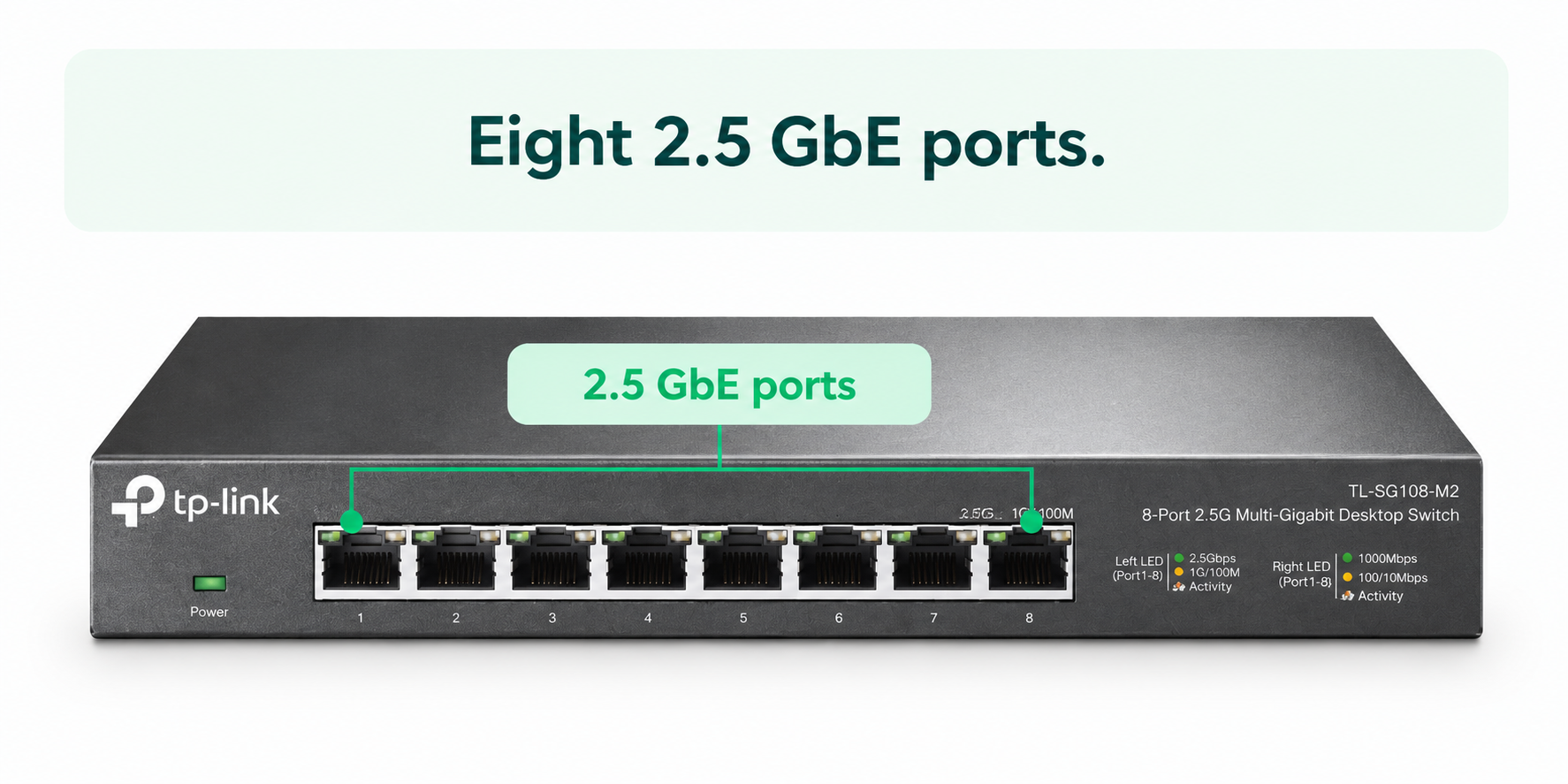
A network switch allows multiple wired devices to share a network connection. If yours only supports 1Gbps ports, devices connected through it won’t individually achieve multi-gigabit speeds.
See below an example of a network switch we offer here at Voyager.
What you need to do:
Check the category printed on your Ethernet cables and the port speeds on any switches or adapters.
Focus on the connections where you want speeds above 1Gbps. There’s no need to replace every cable in your home.
5. Check whether your devices can use the extra speed
Your router and cables might be ready for Hyperfibre, but what about your laptop, desktop computer or gaming console?
Every device has its own networking capabilities.
For example, many laptops and desktop computers have Ethernet ports limited to 1Gbps. Older phones and tablets may also support Wi-Fi standards that can’t achieve multi-gigabit speeds.
That doesn’t mean you need to replace them.
Your existing devices will generally continue to work on your new Hyperfibre connection. They just won’t necessarily be able to use the full speed individually.
If you want a particular device to achieve speeds above 1Gbps, there are a few things you can check.
Desktop computers
Some desktops can be upgraded with a 2.5Gbps or 10Gbps network card, allowing faster wired connections when the rest of the network supports them.
Laptops
Depending on the model, you may be able to use a compatible USB-C or Thunderbolt Ethernet adapter to connect at multi-gigabit speeds.
Gaming consoles
Most current gaming consoles have 1Gbps Ethernet ports, so they won’t individually achieve multi-gigabit wired speeds. However, they’ll continue working on your Hyperfibre connection.
Phones, tablets and smart TVs
These devices can keep connecting over Wi-Fi as normal. Their individual speeds will depend on their Wi-Fi hardware and signal quality.
What you need to do:
Identify any devices where you specifically want faster downloads or uploads, then check whether their network adapters support speeds above 1Gbps.
For everything else, there’s usually no need to change anything.
6. Prepare your home for Hyperfibre installation
Once you’ve checked your equipment, the final step is getting ready for installation.
If your existing ONT isn’t Hyperfibre-compatible, your local fibre network provider may need to send a technician to replace it.
You’ll also want to make sure your router is ready to connect when the new service is activated.
Before installation, check:
- Whether your existing ONT needs upgrading
- Whether a technician needs access to your home
- Whether your router supports your chosen Hyperfibre plan
- Whether you need any new Ethernet cables or adapters
- Whether your Wi-Fi or mesh system needs updating
- Whether you need to allow for a temporary internet interruption
If you work from home or rely on your internet connection throughout the day, it’s worth planning around any potential downtime.
Once your new connection is active, you can test its performance.
For the most useful speed test, use a compatible computer connected directly to a multi-gigabit LAN port on your router with suitable Ethernet cabling.
A Wi-Fi speed test can still be helpful, but it measures the performance of your wireless connection as well as your broadband service.
Get your home ready for Hyperfibre with Voyager
Moving to Hyperfibre is about more than upgrading your broadband plan. Making sure your home network is ready can help you get the most out of the faster connection.
You probably won’t need to replace everything, but checking your router, Wi-Fi equipment, Ethernet cables and connected devices before installation can help avoid unnecessary bottlenecks.
Not sure whether your current equipment is Hyperfibre-ready? Our team can help you understand what you might need to update before making the switch.
Explore Voyager Home Hyperfibre plans or get in touch with our team to get your home ready for Hyperfibre.